
Dear School Administrator, We’re pleased to introduce a new Cookie Consent Banner feature in your CMS dashboard. This feature helps your school provide visitors with greater transparency about cookies used on your website and gives them more control over non-essential cookies. It can also support your school’s privacy and data-protection practices, including considerations under regulations such as the California Consumer Privacy Act (CCPA/CPRA) and other applicable privacy guidelines.
Why Is This Feature Necessary?
School websites process visitor data via essential cookies (for site functionality) and non-essential cookies (such as embedded video players, analytics tools, or third-party forms).
Under laws like the California Consumer Privacy Act (CCPA/CPRA) and the California Age-Appropriate Design Code Act, organizations—including educational institutions and vendors servicing California residents—are required to inform visitors about data collection and offer them control over non-essential tracking cookies. Enabling this feature ensures your district or school website remains compliant while building trust with parents, students, and community members.
To learn more about website privacy compliance for K-12 institutions, you can review the California Department of Justice Consumer Privacy Guide or consult the U.S. Department of Education Student Privacy Policy Office.
How to Enable the Cookie Consent Banner:
Follow these steps to enable the Cookie Consent Banner on your school website:
- Log in to your CMS Administrator Dashboard.
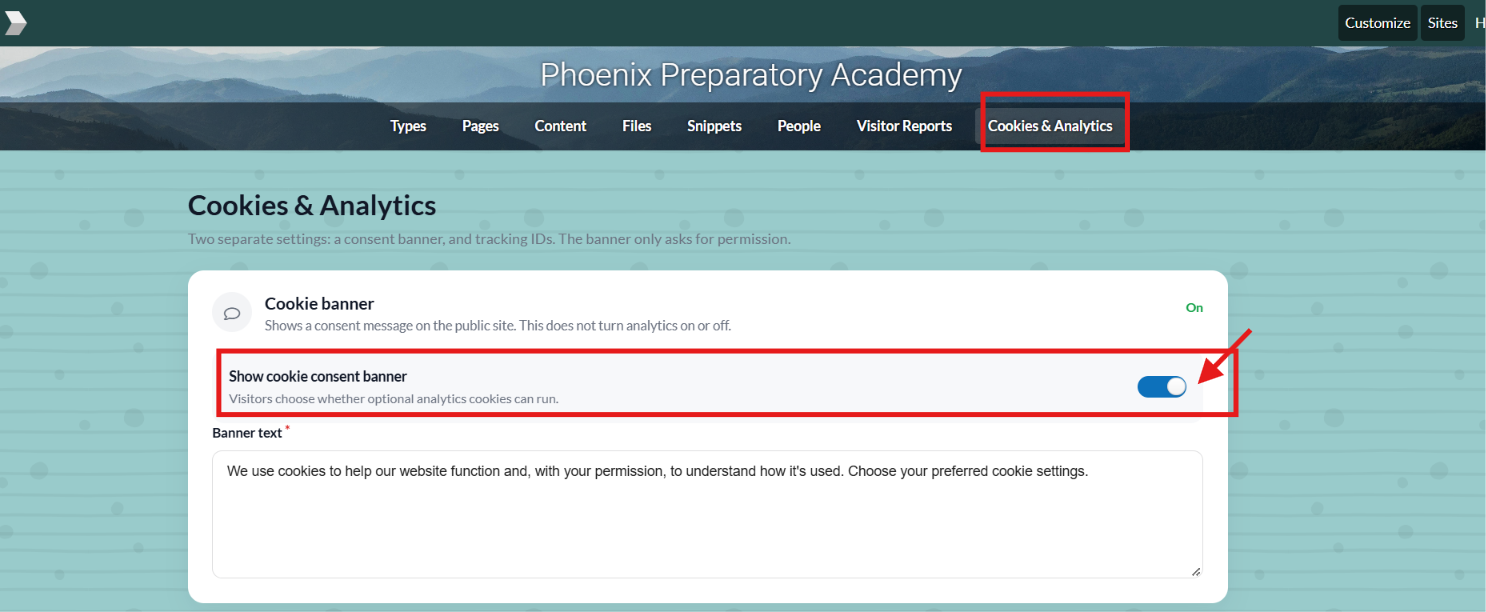
- Find the Cookies & Analytics option.
- Turn the toggle ON to enable the feature.
- Customize the banner message if needed, or keep the default message.
- Click Save Changes.
Once enabled, the Cookie Consent Banner will appear on your school website based on the configured settings.
How to Disable the Cookie Consent Banner:
If your district already uses a third-party cookie consent solution or manages cookie consent through a centralized policy, you can disable the Cookie Consent Banner in the CMS.
Follow these steps:
- Log in to your CMS Administrator Dashboard.
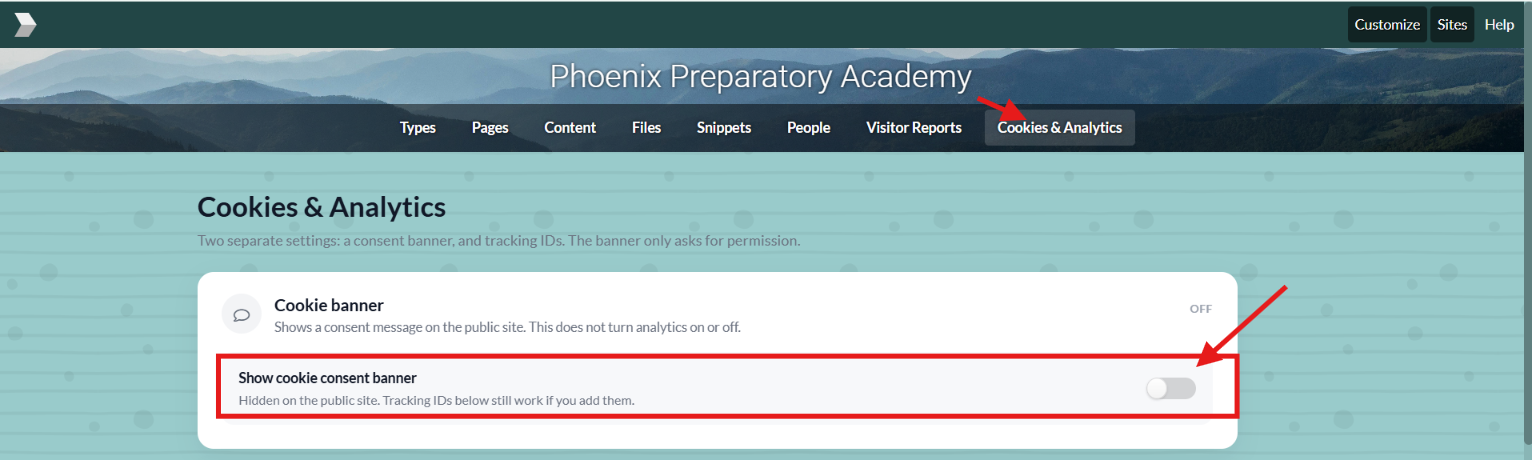
- Find the Cookies & Analytics option.
- Turn the toggle OFF to disable the feature.
- Click Save Changes.
Once disabled, the Cookie Consent Banner will no longer appear on your school website.
Next Steps:
We recommend reviewing your website’s current privacy and cookie settings with your district’s IT, privacy, or legal team to determine the appropriate configuration for your school.
If you have any questions or need assistance setting up this feature, please reach out to our Support Team at support@yourcmsdomain.com.
Best Regards,
The CMS Support Team